

 Switch to Smart
How to Change Your Smart Home WiFi Password
Changing your Smart Home WiFi password helps keep your network secure and prevents unauthorized devices from connecting.
You can update your WiFi password by accessing your modem dashboard through a web browser.
Follow these steps to update your WiFi password.
Step 1: Connect to your Home WiFi
Make sure your phone, laptop, or computer is connected to your Smart Home WiFi network.
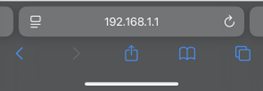
Open your internet browser and type the following in the address bar:
https://192.168.1.1
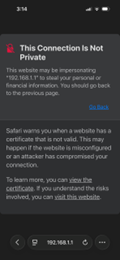
If a security warning appears, select Continue to site or choose Advanced and tap Proceed to continue.
Step 2: Log in to the modem dashboard
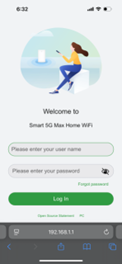
Enter your admin username and password.
If this is your first time logging in, use the default credentials below:
Username: Smart_WiFi_ABC5D
Password: smartwifi
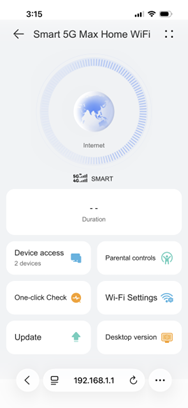
Step 3: Switch to Desktop Version (for mobile users)
If you are accessing the dashboard using a mobile browser, tap Desktop Version to view the full modem interface.
Step 4: Go to the password settings
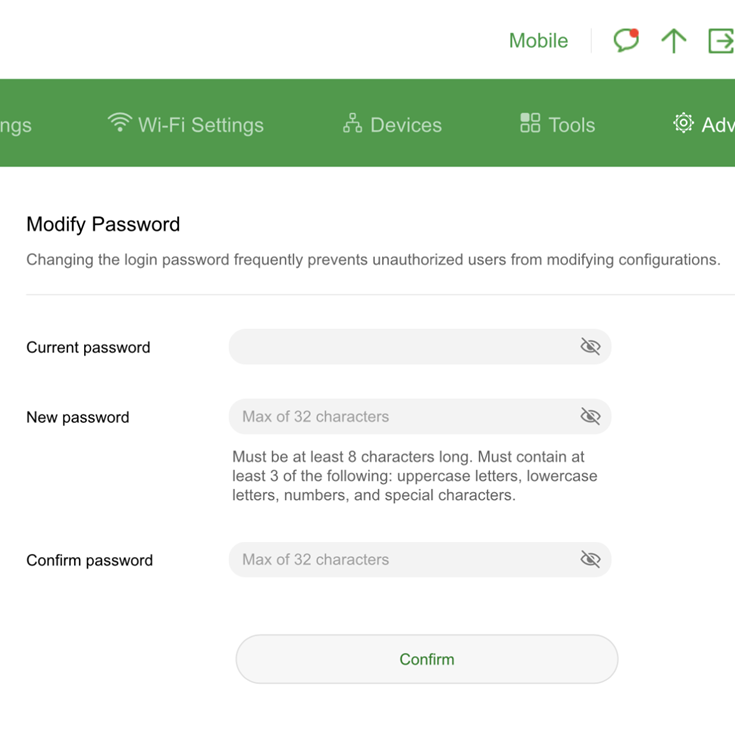
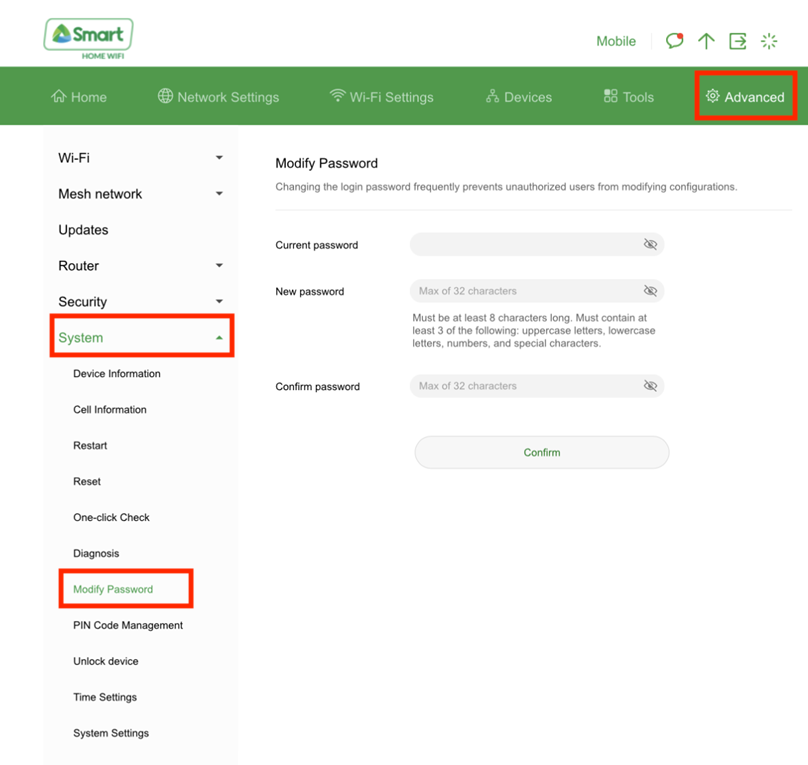
Tap Advanced, then select System, and choose Modify Password.
Step 5: Update your WiFi password
Enter your new WiFi password and save the changes.
Your password must meet the following requirements:
• At least 8 characters long
• Contains at least three of the following:
– Uppercase letters
– Lowercase letters
– Numbers
– Special characters
Once saved, reconnect your devices using the new WiFi password.