


 Switch to Smart
How to View Your SMS Using Your Smart Home WiFi Device
You can conveniently view SMS sent to your Smart Home WiFi mobile number by using the Smart Home WiFi Device Settings Dashboard.
Use the Smart Home WiFi Device Settings Dashboard
Follow these steps if you prefer to view your SMS on a browser:
- Connect your device (phone, tablet, or laptop) to the WiFi signal of your Smart Home WiFi unit.
- Open a web browser and go to: https://192.168.1.1
- If you see a “Your connection is not private” message, click Advanced and select Proceed to 192.168.1.1 (unsafe) to continue.
- Log in to the Dashboard
- Default Username: smartwifi
- Default Password: smartwifi
- If you’ve previously updated your login credentials, use your existing username and password.
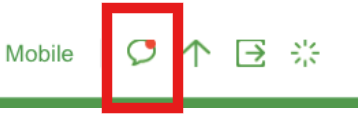
First-time users will be prompted to change the default admin username and password immediately after logging in. - Once logged in, go to the “message icon” on the upper right of your Smart Home Wifi Dashboard.
Note for First-Time UsersOn your first login, a pop-up will prompt you to update your default dashboard credentials. Simply follow the steps provided here.