

 Switch to Smart
How to Check Your Smart Home WiFi Usage on the Smart App
The Smart App makes it easy to monitor your Smart Home WiFi usage anytime. In just a few taps, you can check your data allocation, active add-ons, and recent transactions.
How to Check Your Usage on the Smart App
Follow these steps to view your Smart Home WiFi usage.
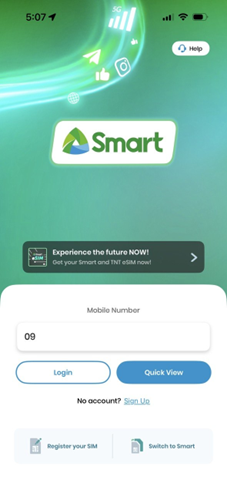
Step 1: Log in to the Smart App
Open the Smart App and log in using your mobile number and password.
If you don’t have an account yet, download the Smart App from the Google Play Store, Apple App Store, or Huawei AppGallery, then sign up using your mobile number.
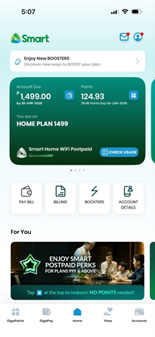
Step 2: Tap Check Usage
On the Smart App home page, tap the Check Usage button.
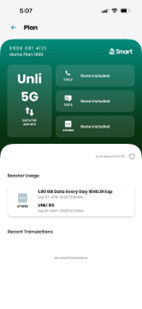
Step 3: View your usage details
The Check Usage page allows you to monitor the following information:
• Plan inclusions and remaining data allocation
• Active booster or add-on subscriptions and their usage
• Expiration date of your booster or add-on subscriptions
• Transaction history for your account
Regularly checking your usage helps you stay informed about your remaining data and active subscriptions.